Online Payments in Your QR Menu with Stripe
Do you want customers to pay online when they order from your menu? With Restsify you can connect your own Stripe account, enable online payment, and receive payments from delivery or pickup orders directly to your Stripe account.
This works even on the free plan. Restsify does not currently take a commission from your transactions. You only pay the standard Stripe processing fees for successful payments.
Online Payments Directly From Your Menu
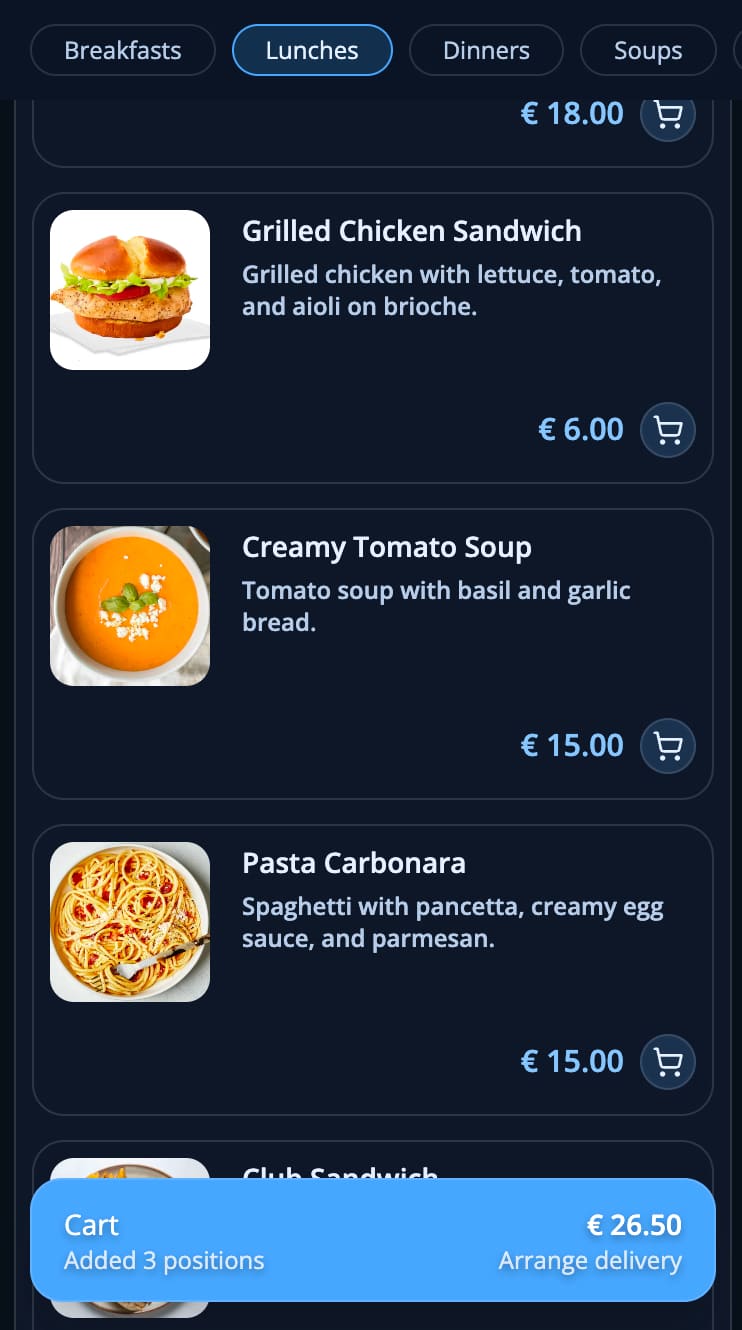
Restsify menus are not only for showing products and prices. Your customer can open the menu, add items to the cart, choose delivery or pickup, and pay online during checkout.
The payment is processed by Stripe. The connected Stripe account belongs to you, so you can see payments, payouts, and settings in your own Stripe Dashboard.
- Customers can open the menu by QR code or by your personal link
- Online payment can be used for delivery and pickup orders
- Money goes to your connected Stripe account
- Restsify does not currently take a transaction commission
Who Can Use It?
Online payments are useful for any business that sells from a menu or a simple product list. You do not need a large online store. You need a clear menu, prices, order options, and a way for customers to pay.
It is especially useful for new and growing businesses that want to test online orders without paying for a custom website first.
- Restaurants, cafes, bars, bakeries, and food delivery
- Flower shops and small local stores
- Hookah lounges and other menu-based businesses
- Small delivery projects that are just starting
How Stripe Connect Works
In the resource order settings, you connect your own Stripe account through Stripe Connect. After that, online payment becomes available in checkout for this resource.
When a customer pays, Stripe processes the payment and sends the money to your Stripe account according to your Stripe payout settings. You can choose your bank account and payout settings inside Stripe.
- Connect Stripe from Restsify resource settings
- Complete the Stripe onboarding form
- Add your business and payout details in Stripe
- Manage payments and payouts in your Stripe Dashboard
Payment Options for Customers
You can offer online payment together with other payment types. This is important because different customers prefer different ways to pay.
For example, one customer may pay by card online, another may pay cash on delivery, and another may pay by card to the courier using a terminal.
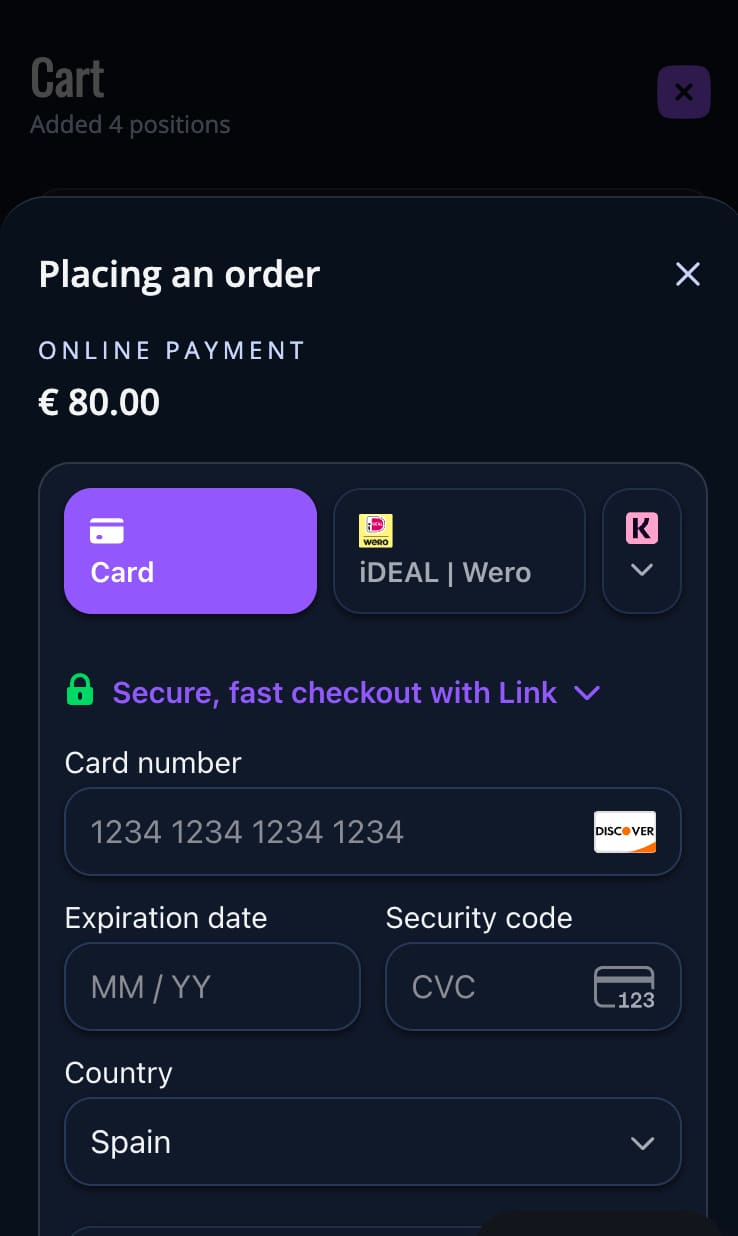
- Online card payment through Stripe
- Stripe Link, Apple Pay, Google Pay, and local payment methods when available
- Cash payment on delivery or pickup
- Card payment by terminal on delivery or at the location
How to Set It Up
- Create a Restsify account and choose a plan. Online payments are available even on the free plan. You can also compare pricing plans.
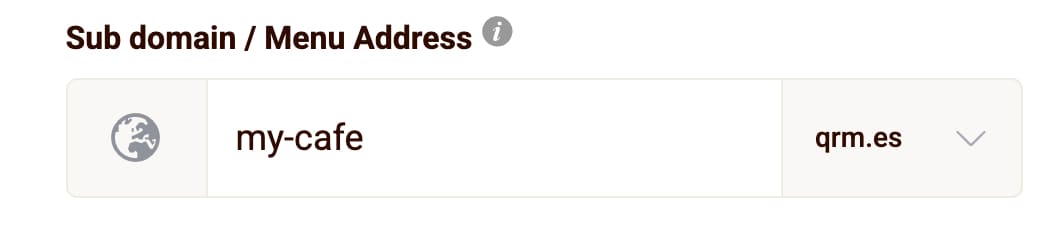
- Create a resource for your business and choose a personal menu address. For example, you can use a short address like cafe.qrm.es. Read more about personalized menu domains.
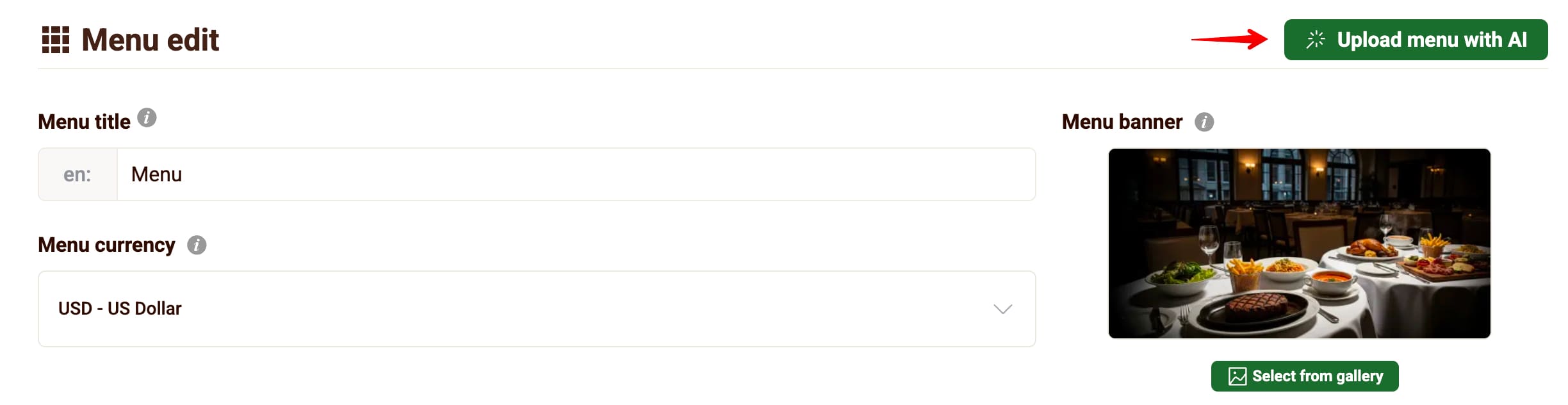
- Add your menu: import it from photos or PDF, or create it manually.
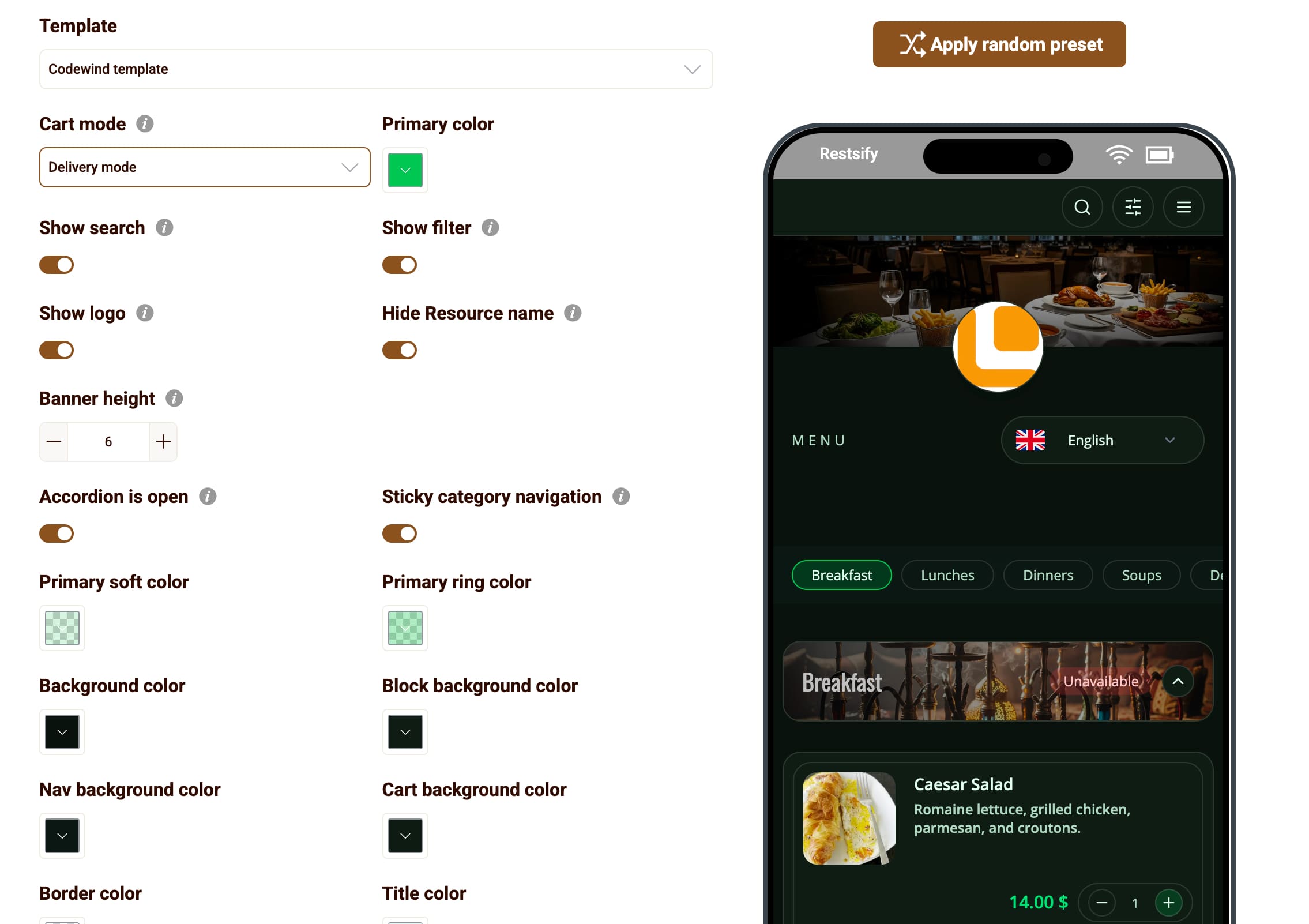
- Choose a menu template and set your colors, fonts, logo, images, and layout. You can read more about menu templates.
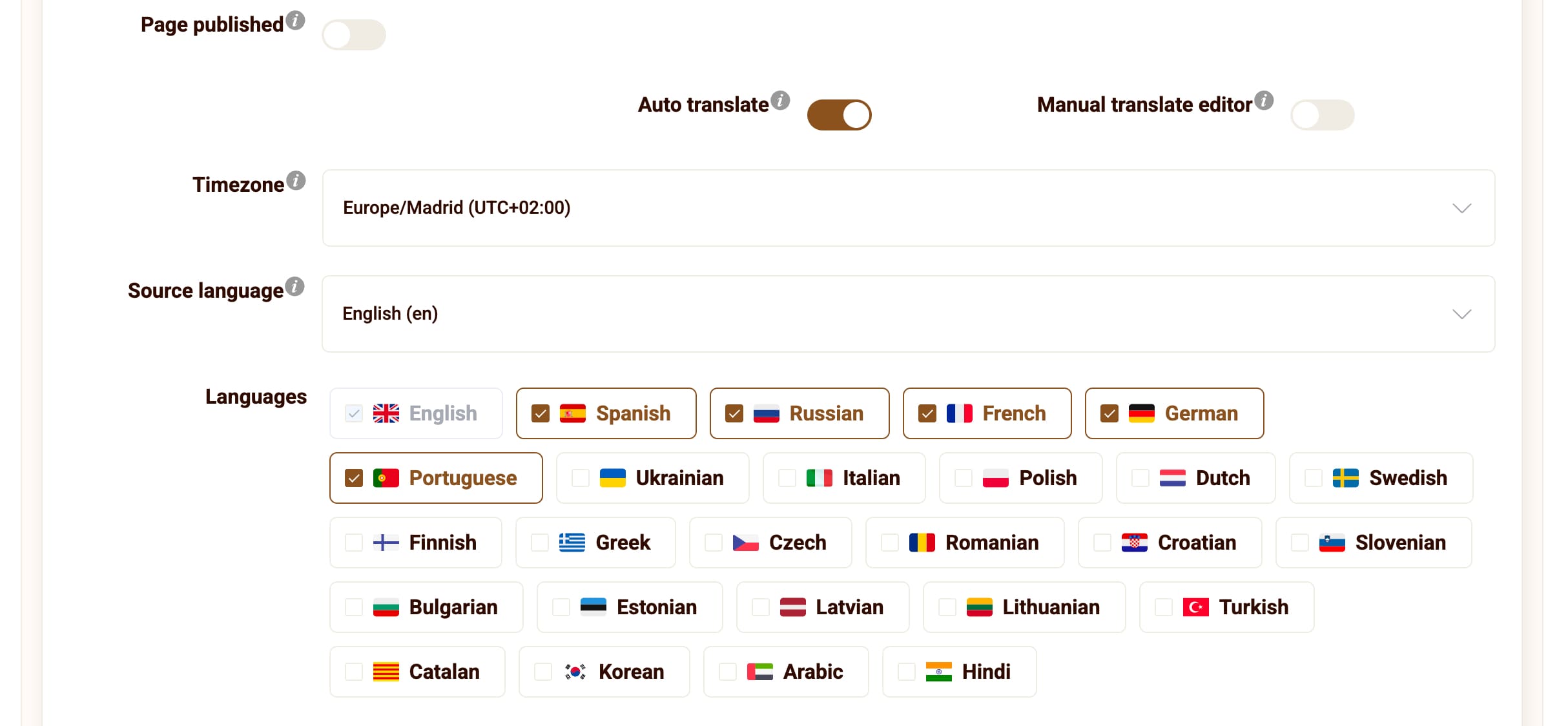
- If your customers speak different languages, enable menu translations. Learn more about AI multilingual menus.
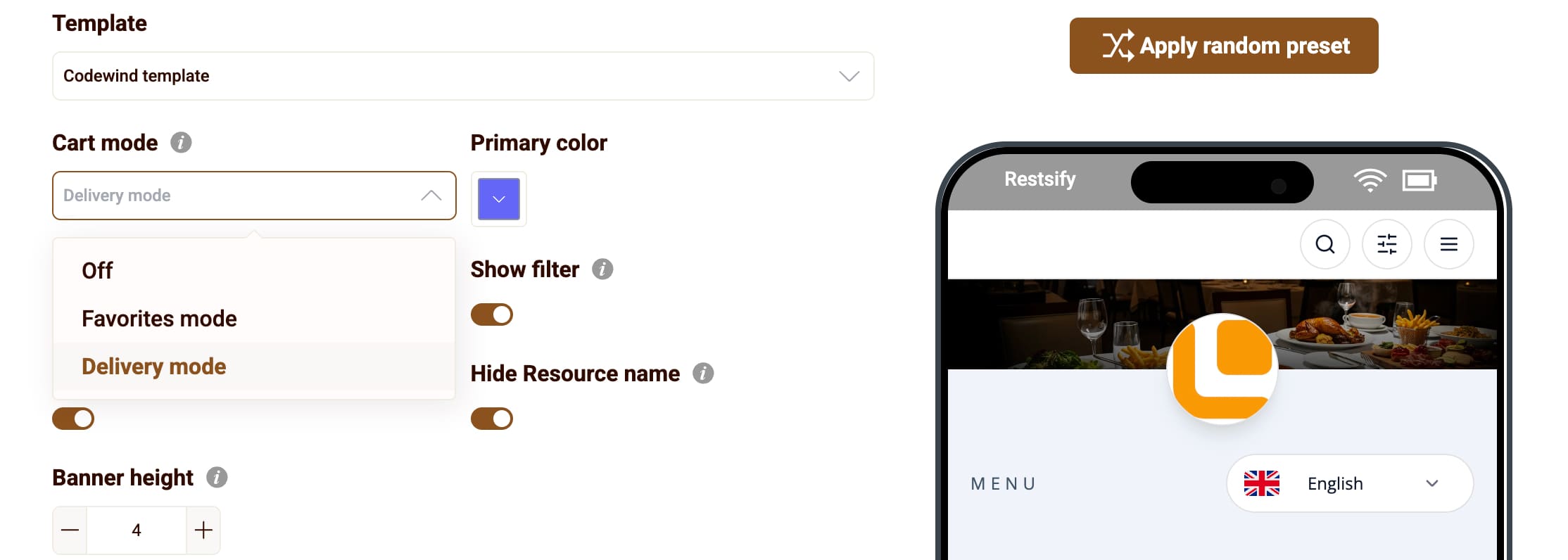
- Open the template settings and enable delivery or ordering mode in the selected template. This is needed so customers can use the cart and checkout.
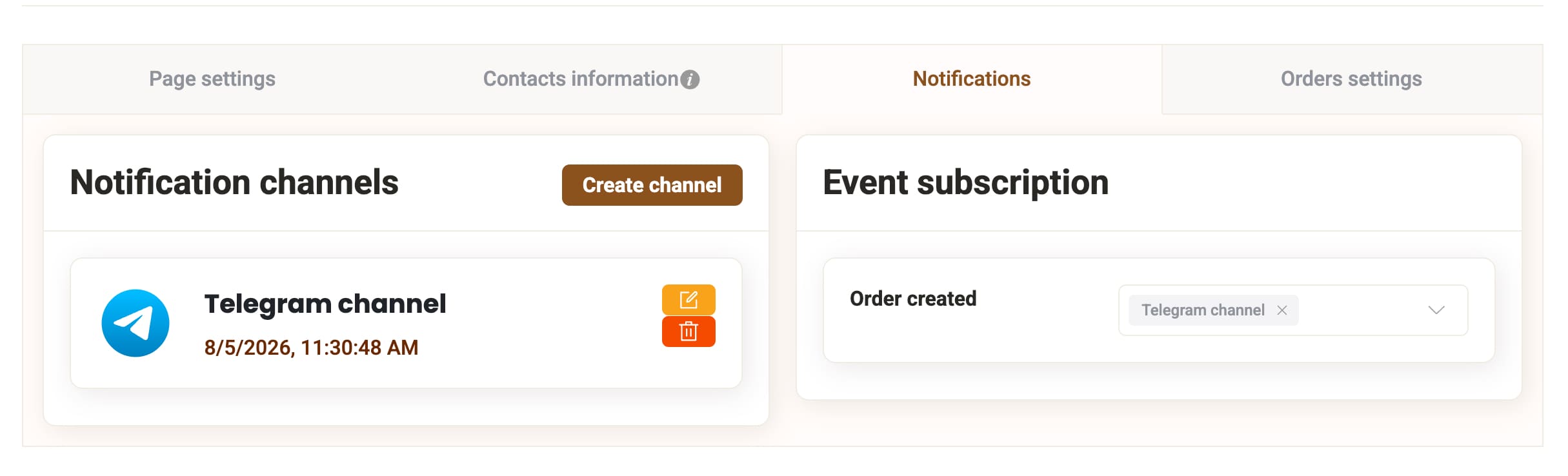
- Open resource settings and connect Telegram notifications if you want to receive new order alerts.
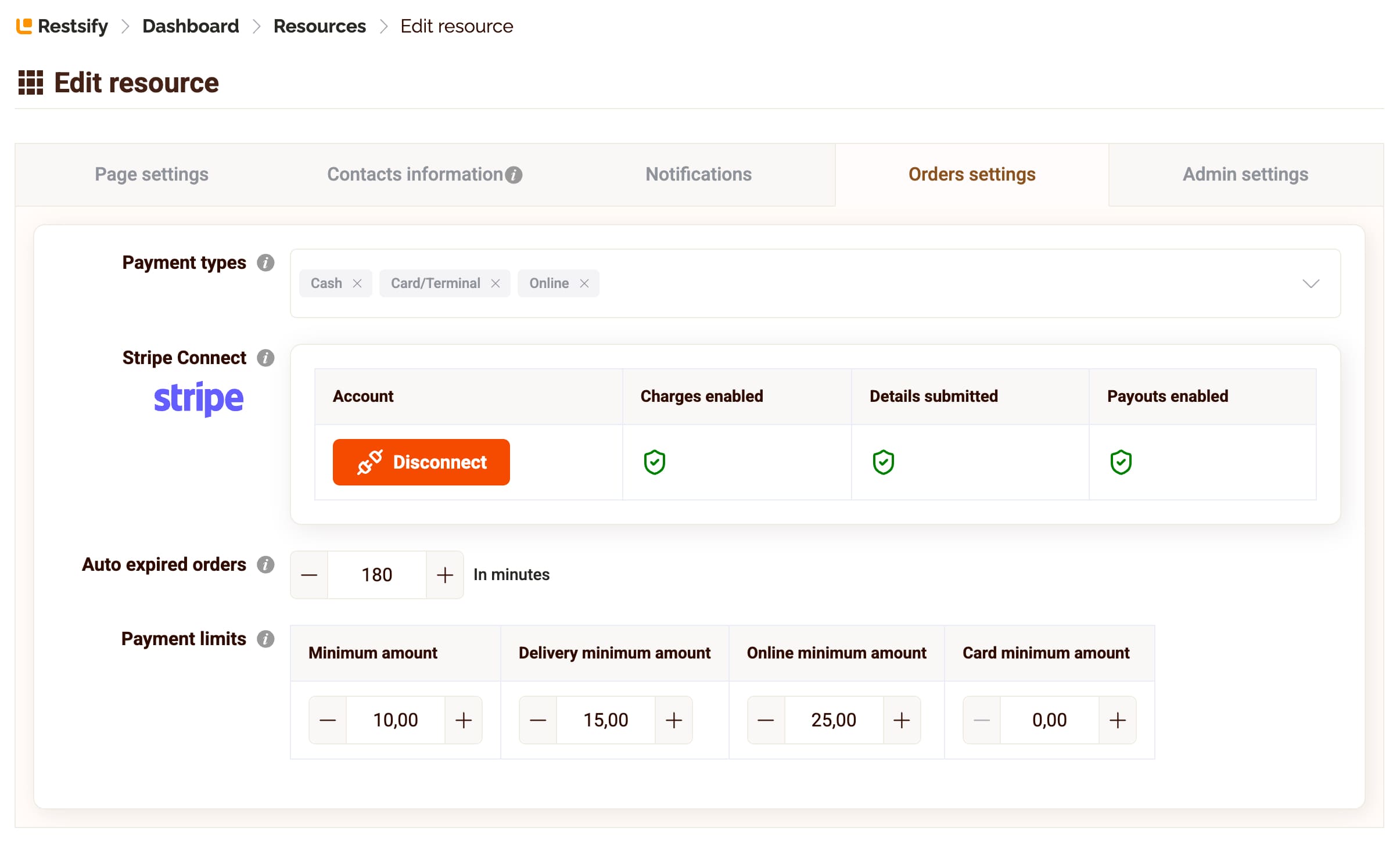
- Open order settings and choose payment types: cash, card or terminal, and online payment.
- Set order limits if needed: minimum order amount, delivery minimum amount, online payment minimum amount, and card or terminal minimum amount.
- Click the Stripe Connect button, complete onboarding on Stripe, and return to Restsify.
- Publish your personal link or QR code. Customers can scan the QR code or open the link directly, order delivery or pickup, and pay online.

Delivery, Pickup, and Order Control
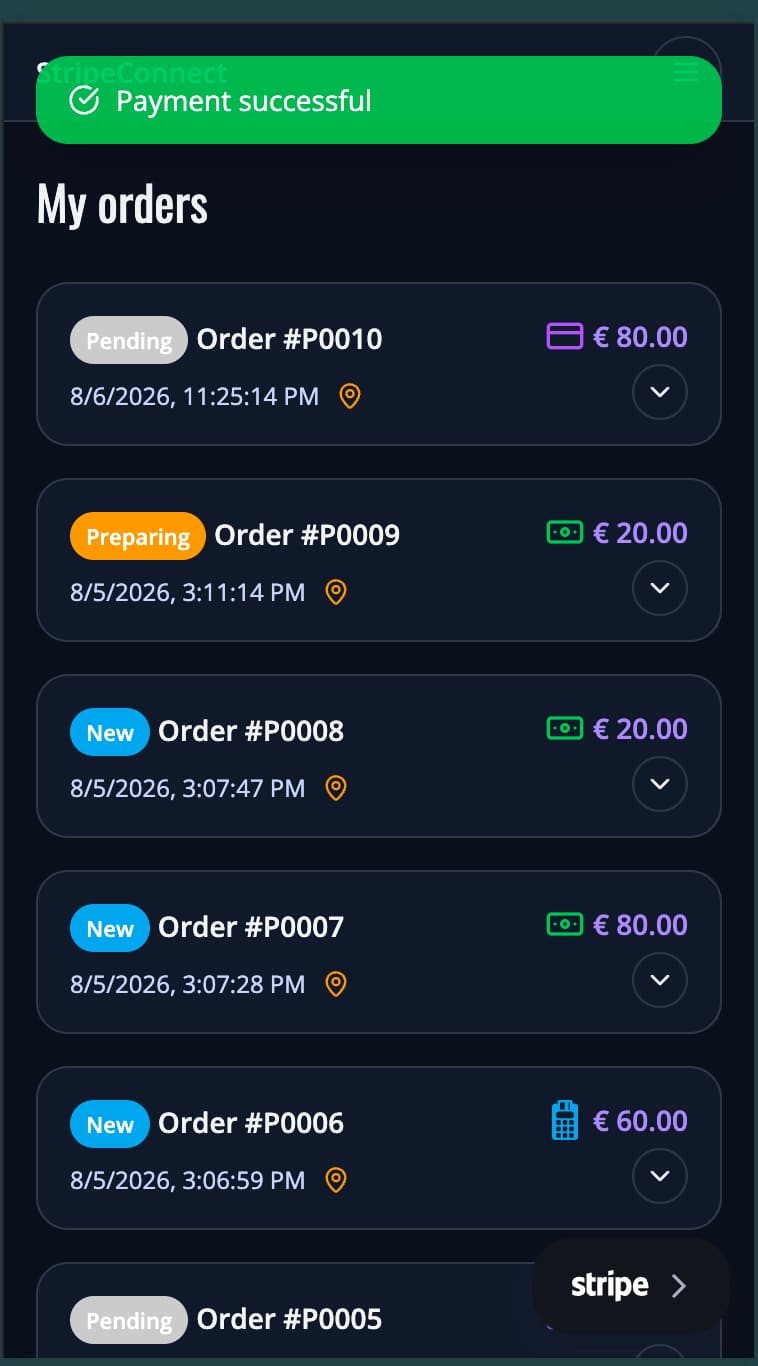
Online payment is part of the order flow. In Restsify you can accept orders, reject them, move them to processing, mark them as in delivery, and complete them.
You can also use Telegram notifications and buttons to manage order statuses faster. For more details about delivery and pickup, see online ordering for pickup and delivery.
- Order statuses in the dashboard
- Telegram notifications for new orders
- Accept, reject, and move orders forward
- Automatic expiration for orders that were not processed
- User blocking for fake or unwanted orders
Free Plan and Fees
Online payments through Stripe Connect are available even on the free Restsify plan. The free plan has no ads and no traffic limits. The main limit is the number of menu items.
Restsify does not currently take a commission from transactions. Stripe charges its standard payment processing fees. The exact fee depends on your country, card type, and payment method, and Stripe shows it in your account.
- Free: up to 25 menu items
- Standard: €9.99 per month, up to 150 menu items
- Standard Plus: €19.99 per month, almost unlimited menu items
- Stripe fees are paid to Stripe, not to Restsify
Start Accepting Online Payments
Create your menu, enable ordering in the template, connect Stripe Connect, and share your QR code or personal link. Your customers can order from their phone and pay online during checkout.
Create a free Restsify account and start with a simple online menu for your business.